Stck · 2023
Visualise AI
Turn your words into pictures
Visualise AI turns your writing into pictures. Highlight a few lines in your post, and it makes an image that matches them. It's an easy way to show what you mean.
Adding pictures was slow and costly
Too many tools
Writers had to switch apps to make and edit images. It was slow and broke their focus.
Always uploading and downloading
Moving files back and forth kept getting in the way of writing.
Designers cost money
Small businesses and individuals often couldn't afford to hire one.
Hard for non-designers
Most people don't have design skills, and most tools are made for designers.
Write and make pictures in one place
Easy pictures
Access
Make good images from text, even if you've never designed anything.
One place to work
Flow
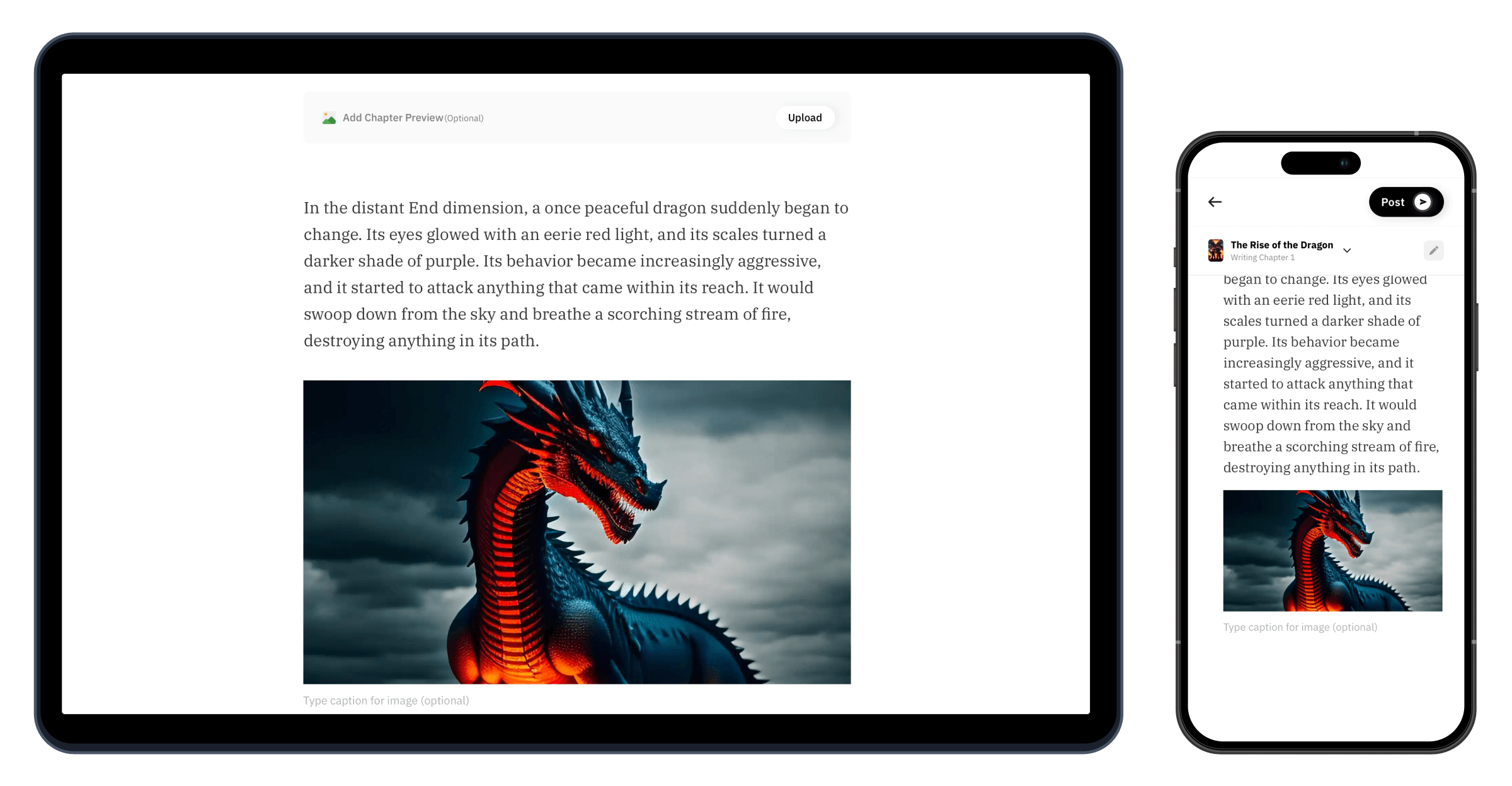
Make and add images inside the editor. No switching, no uploading, no downloading.
Try again
Control
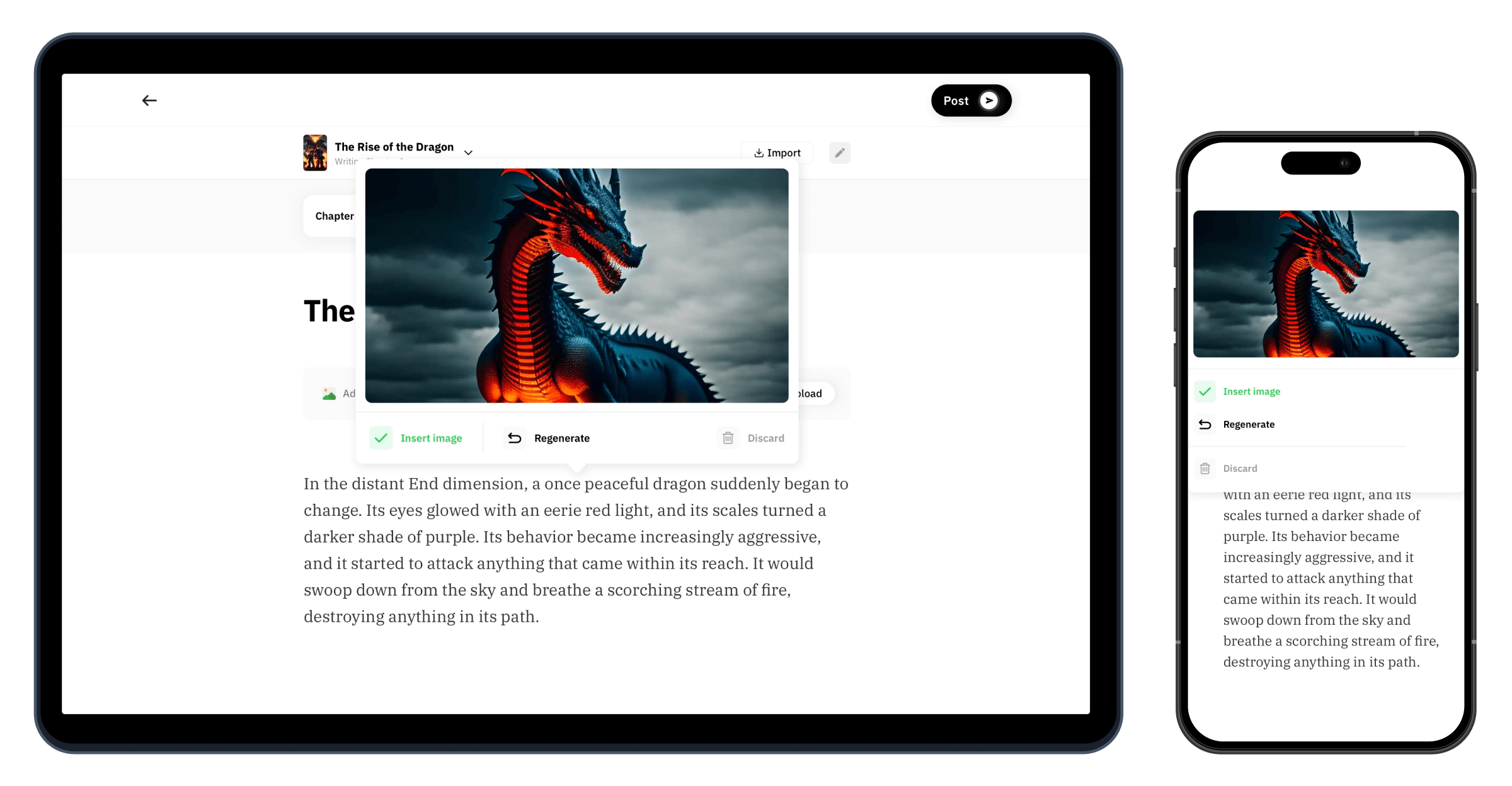
If an image isn't right, make a new one from the same text instead of starting over.
How words become a picture
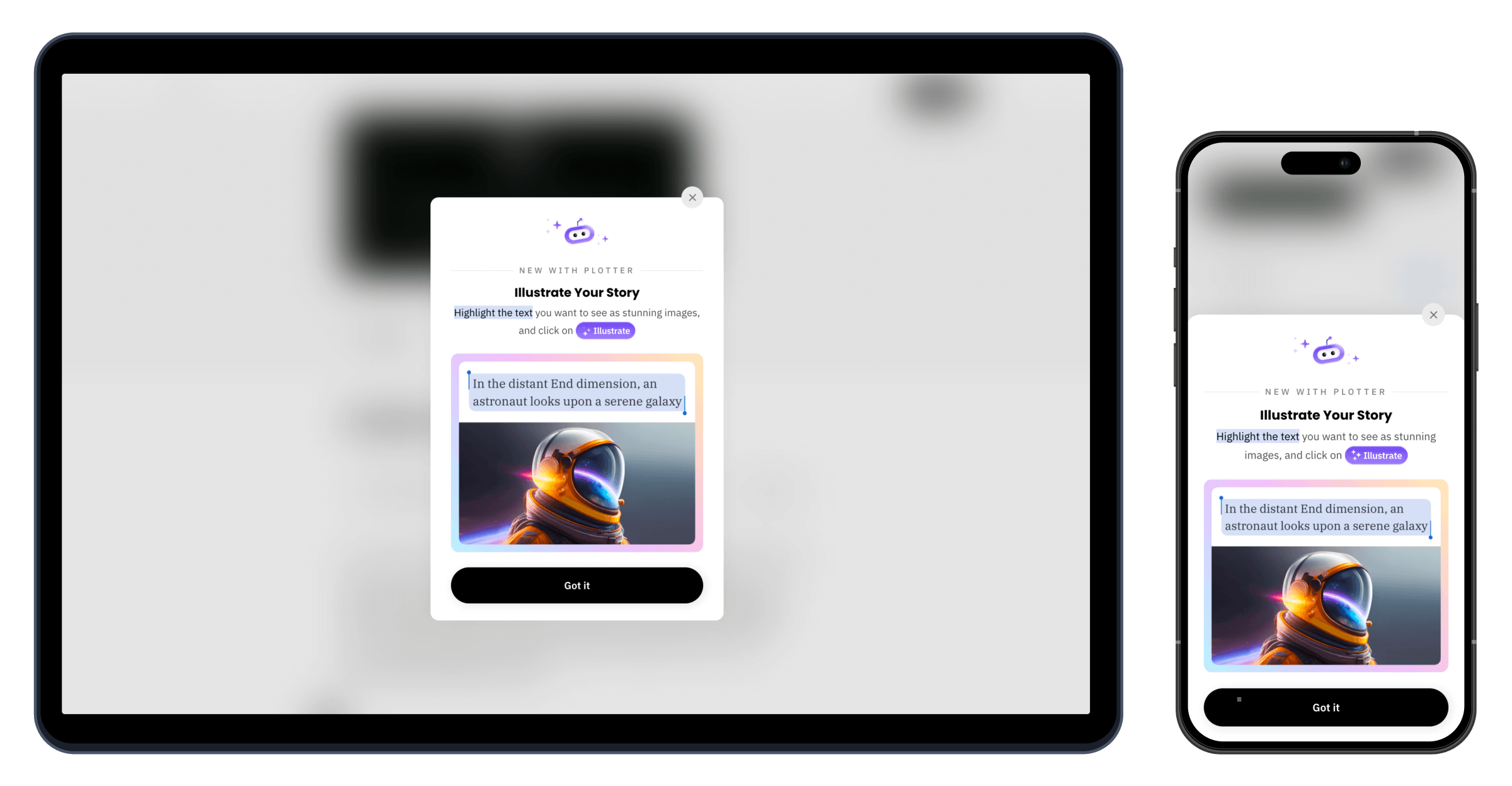
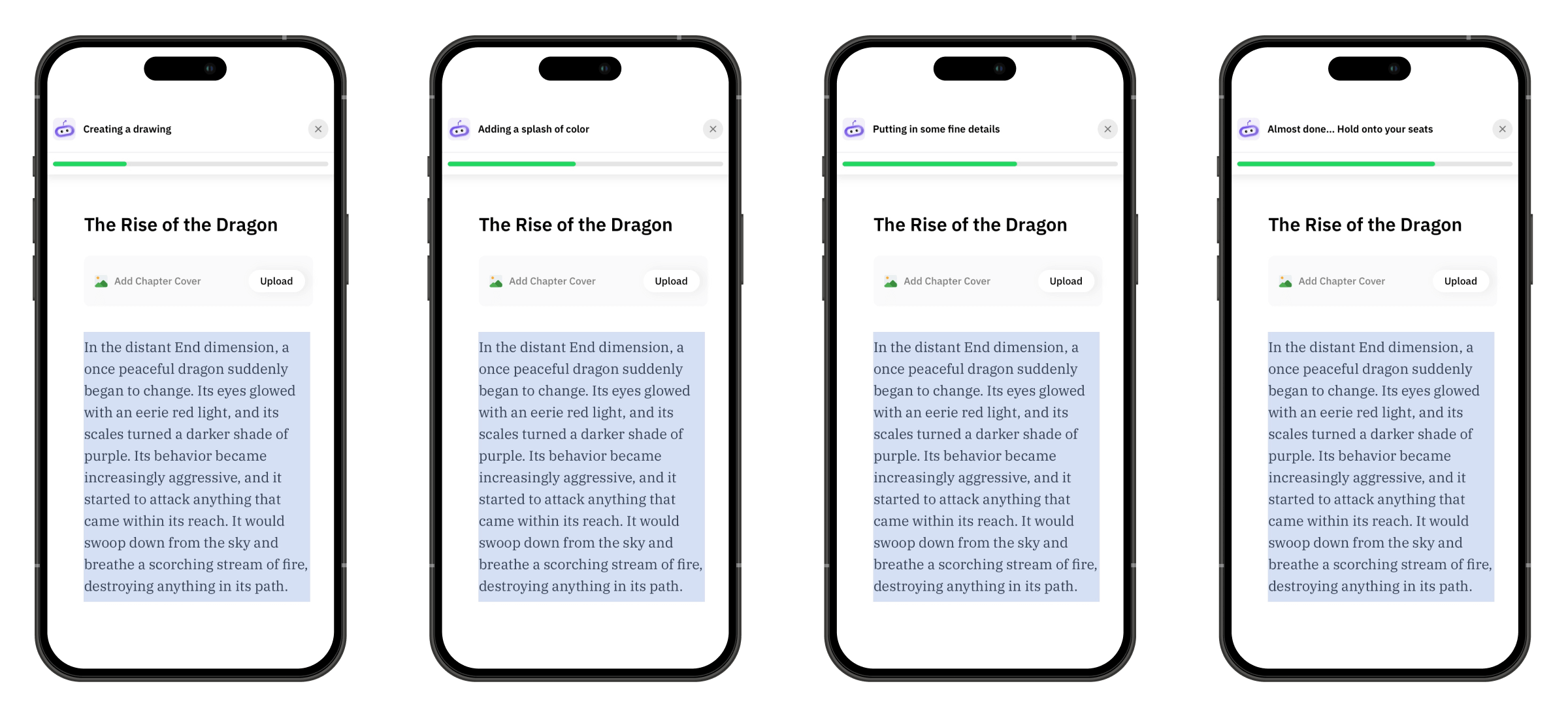
A tip on first use shows how it works. After that, the writer can do it on any paragraph without leaving the page.
Once, on first use
Then, every time
How adding a picture felt
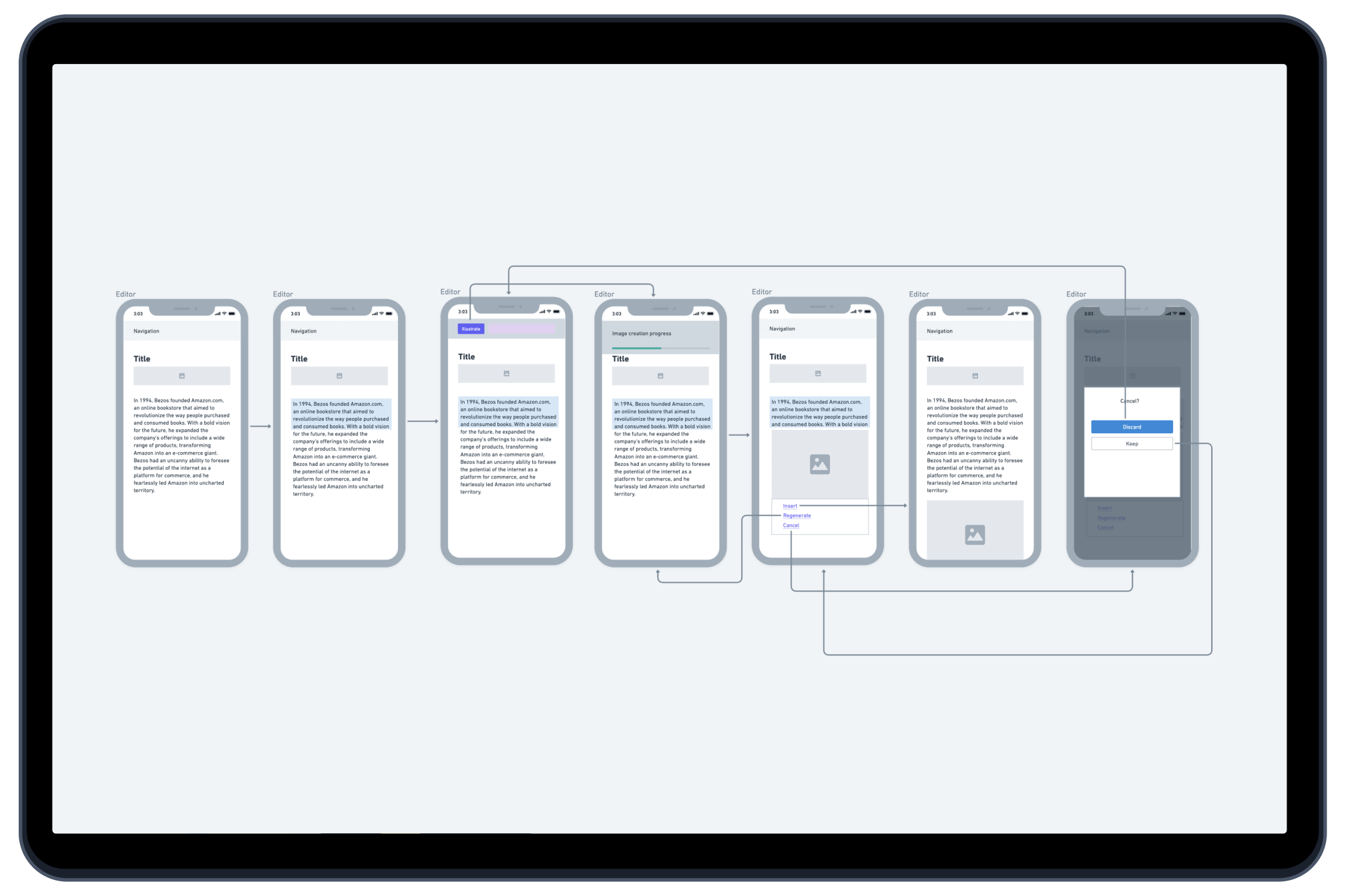
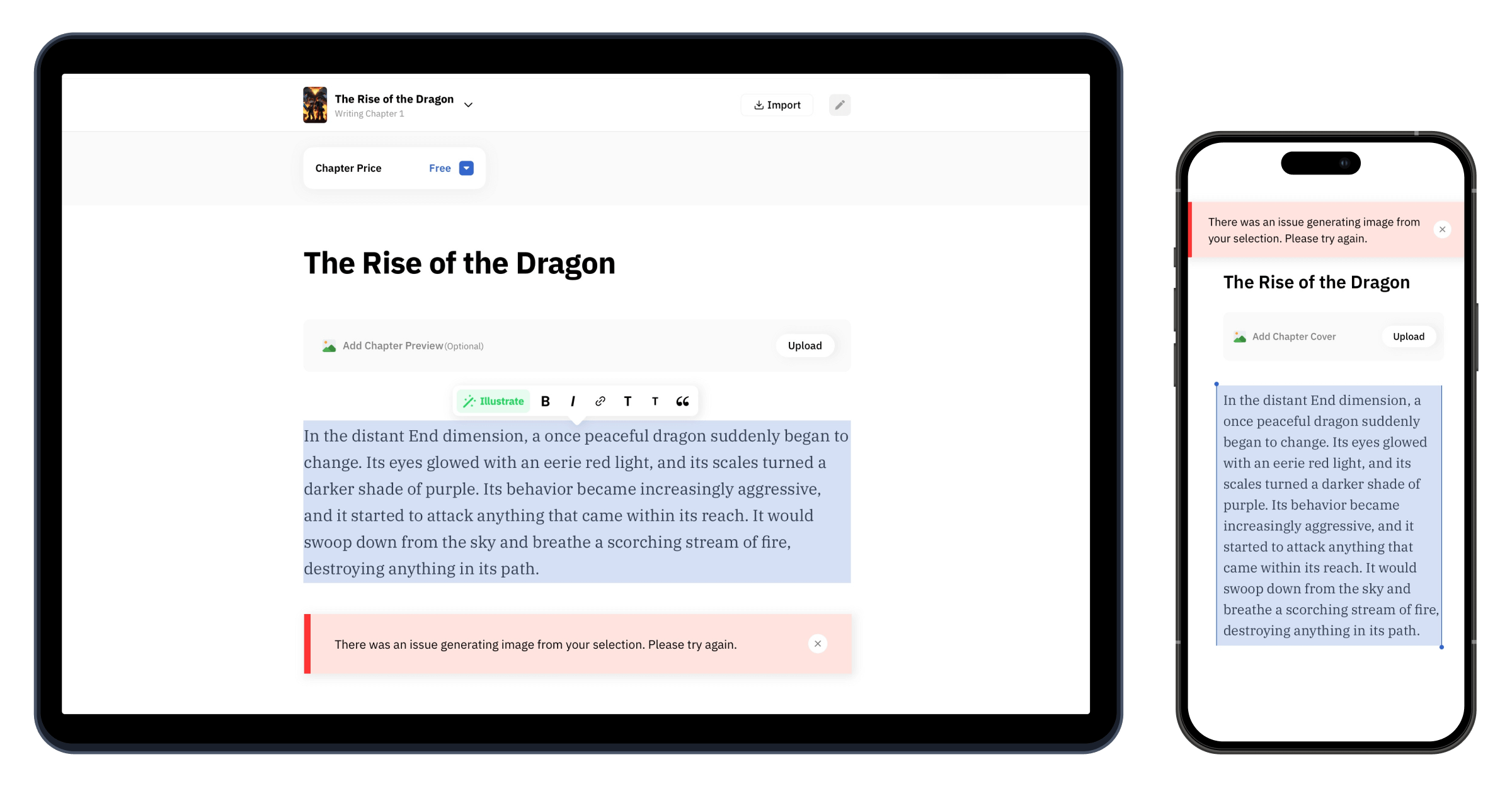
This follows a writer from the first tip to a picture in their post. The low point is when an image fails. We kept that calm, with a one-tap way to try again.
Persona
IshaanBlogger on Stck
Scenario
Ishaan writes long posts and wants a picture to break up the text, but has no design skills and no time for other tools.
Goal
Add a matching picture to a paragraph without leaving the post
First-time tip
Show the tip again later if it hasn't been used.
Entry point
Suggest paragraphs that would work well as pictures.
Reading
Show which words the picture will be based on.
Progress
Let writers keep writing while the picture is made.
Error
Say why it failed, like a paragraph that's too short.
Done
Offer a few styles to pick from.
Added
Let writers turn a picture into the story's cover.
Drag or scroll sideways to see every step →
Adding pictures without leaving the page
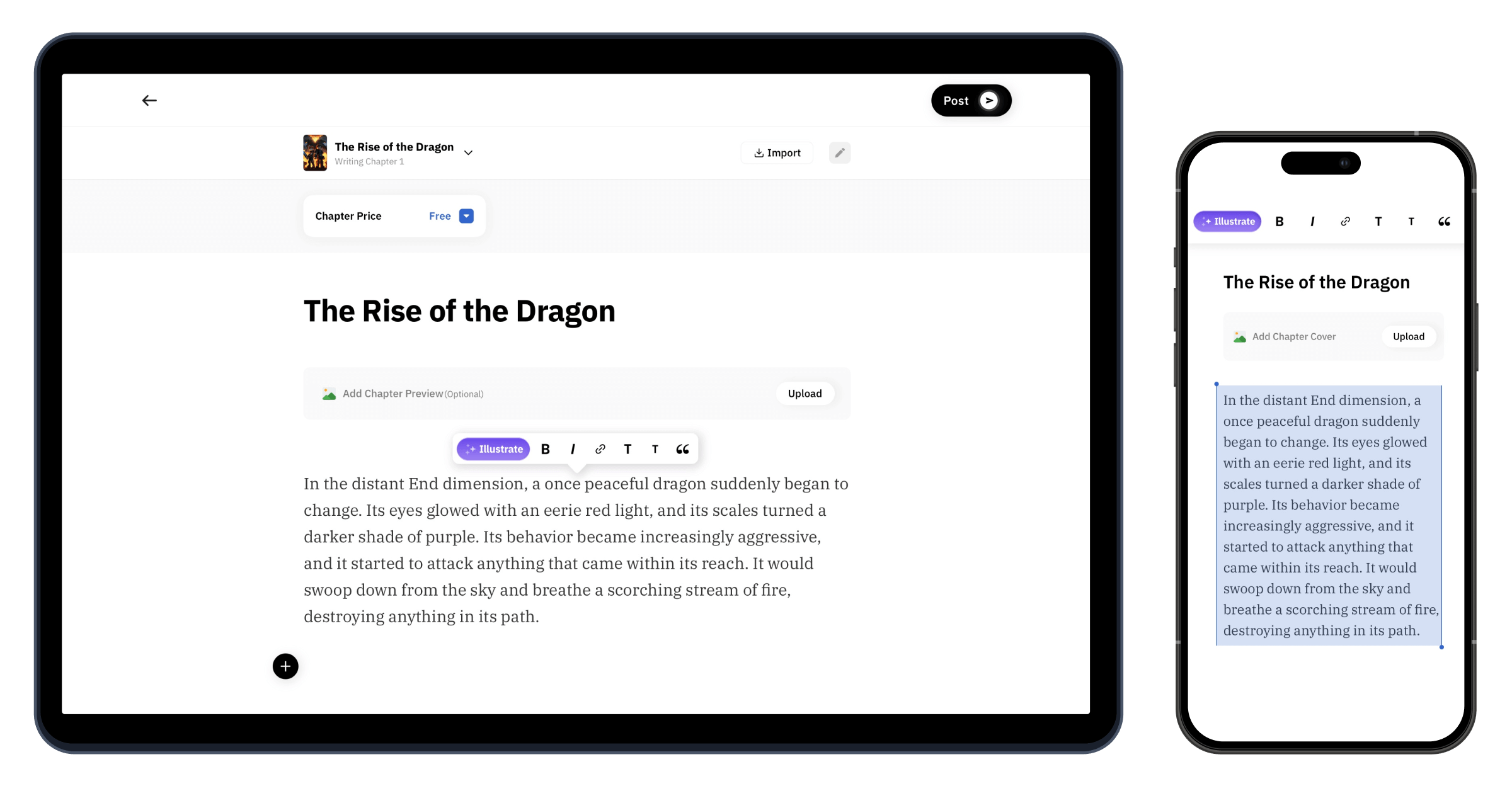
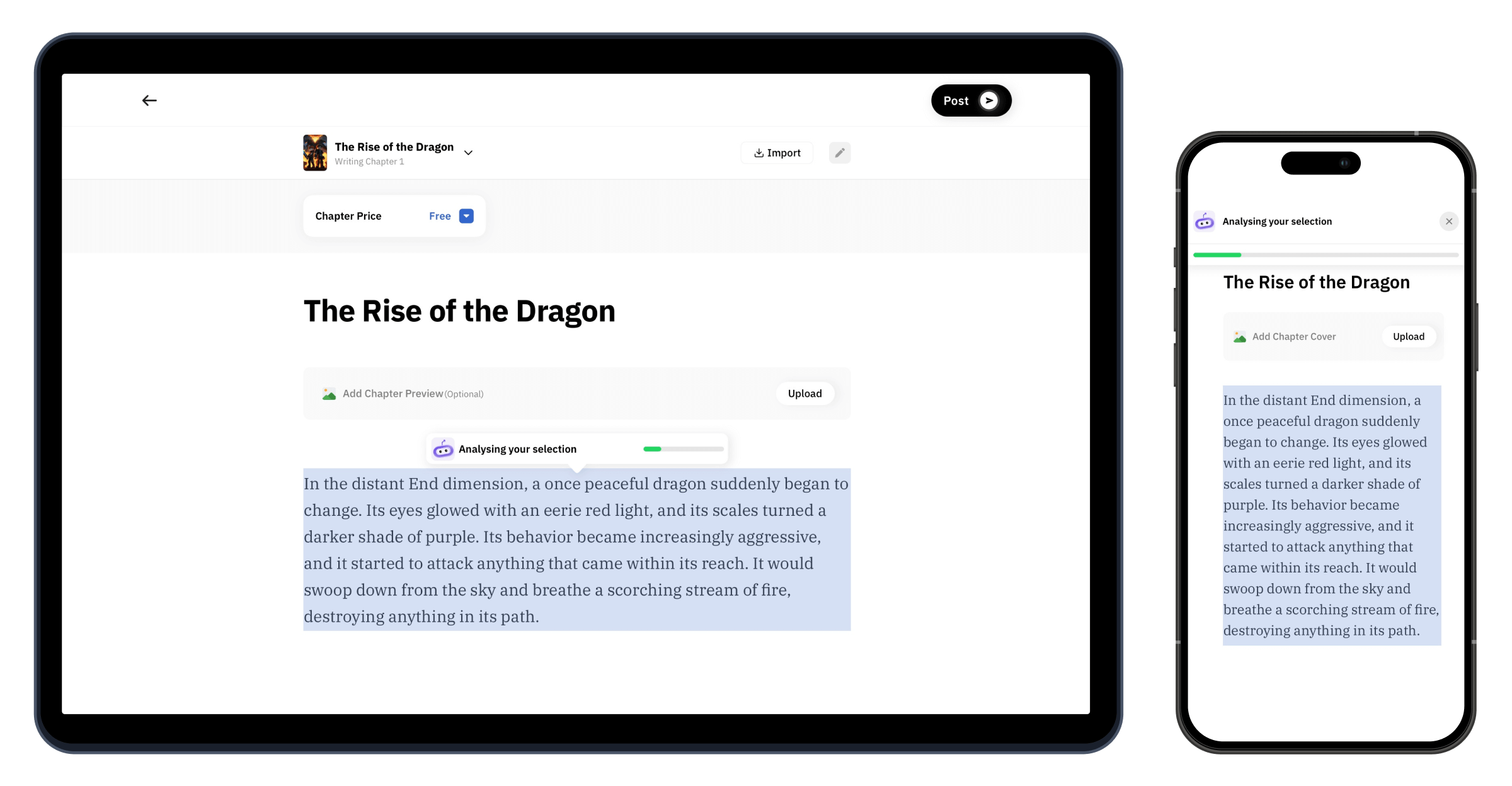
Visualise AI lives in the menu that appears when you select text, so making a picture feels like part of writing. Highlight some text, tap Illustrate, and the image appears next to your words. Then add it, try again or delete it.
What changed
+26%
More users
+35%
Social shares
+40%
Time spent reading
+15%
Premium sign-ups
Pictures as part of writing
Because it lives in the highlight menu, Visualise AI made adding pictures feel like part of writing, not a separate task. The small things made it work: a first-time tip, friendly progress messages, and add, try again or delete always close by.
See more projects
Stck Books. Print on demand for every book.
A print-on-demand system built from scratch. Any book on Stck can become a printed paperback and ship anywhere in the world.





Picto. Make images with AI.
AI images inside the editor. Type a prompt and get a cover, an illustration or a photo without leaving your draft.



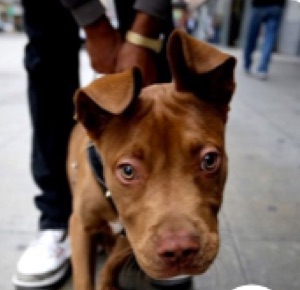
Petdoo. Find a pet that fits your life.
A pet adoption app that helps people find a pet that suits the way they live.
Headlines. Swipe through the news.
A news app for busy readers. Swipe through the day's stories on your phone, one card at a time.
Comments. Better discussion under every article.
Comments under every article, checked by moderators so the conversation stays useful and polite.








Earnings. A clear view of what creators make.
A new earnings page that shows creators what they made, what was taken out and when they get paid.
 Antony




Custom Domain. Your own web address.
Creators can connect their own web address to their Stck page and look more professional.
Stck sign-up. Fixed inside Instagram.
Google sign-up kept failing inside Instagram's browser. A small fix that explains why and shows a way out.
Loved this piece. The stand-up scene here finally has the stage it deserves.
Reply Report@Aditi Agreed. The open mic nights have been packed all month.
Saw the festival lineup last week. Good to see so many first-time comics getting a proper slot this year.
Reply Report